
Use the document library
Browse folders, download documents and check earlier versions in the consortium's document library.
Member guide.
The library holds the consortium's guidance and documents, arranged in folders.
Who can do this: anyone can open the public folders. Signed-in members see more.
Before you start
You do not need to sign in to see public folders. The page then says "You can see the public folders. Sign in to see more." Some folders are for signed-in members only, and some only for members with a particular access level or tag, so two people can see different folders. A folder never shows you something you are not meant to see.
Documents that belong to a framework live inside that framework's own folder. You see them only after an administrator approves your access. See the guide "Request access to a framework and use its documents".
Find a document
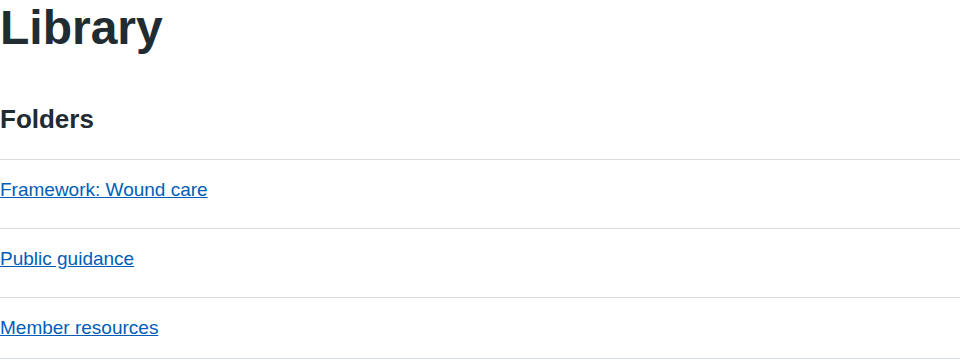
- Select Library in the main navigation.
- Under Folders, select a folder name to open it. Folders can contain more folders.
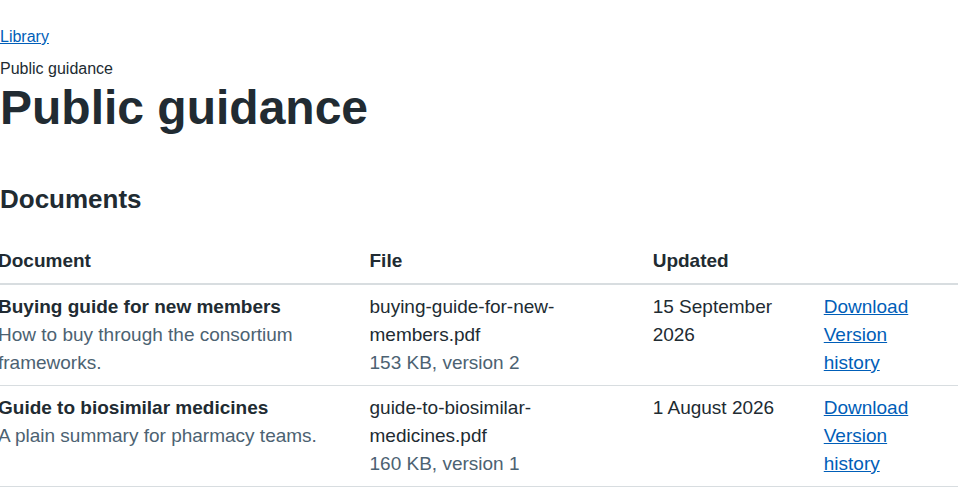
- Use the breadcrumbs above the folder title to go back up, for example Library.
- Under Documents, read the title and description. The File column shows the file name, its size and its version number. Updated shows when it was last changed.
If a folder has nothing you can see, the page says "There is nothing in this folder that you can see."
Download a document
- Find the document in the table.
- Select Download in the last column. The latest version of the file is saved to your device.
Documents are scanned for viruses before they are released, so a file an administrator has just uploaded may take a short while to appear.
Look at earlier versions
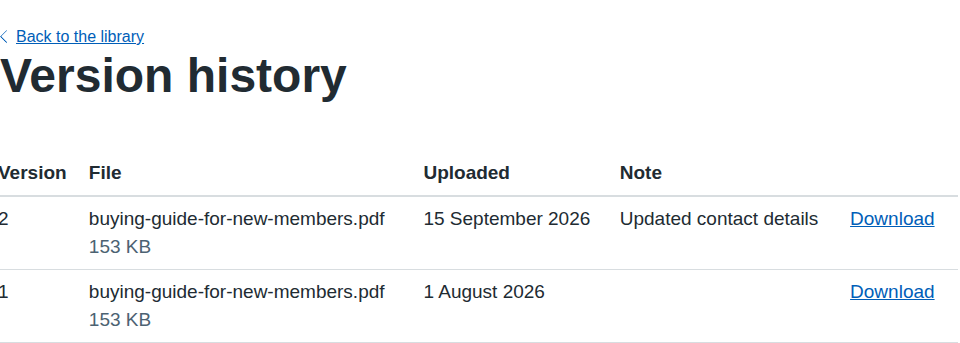
When the consortium replaces a document it adds a new version and keeps the older ones. The table shows the newest version that has passed the virus scan; a version that is still being scanned does not appear until it is clean.
- In the document's row, select Version history.
- Read the Version, File, Uploaded and Note columns. The newest version is first, and every version you can see is listed.
- Select Download beside the version you want.
- Select Back to the library to return to the top of the library.
If something goes wrong
| Message on screen | What it means and what to do |
|---|---|
| You can see the public folders. Sign in to see more. | You are not signed in. Select Sign in to see folders for members. |
| There is nothing in this folder that you can see. | The folder is empty, or its contents are not available to you. |
| There are no versions that you can see. | No version of this document has passed the virus scan yet, so none is available to you. Try again later. |
| Page not found | A folder or document link is wrong, was removed, or you do not have access to it. Return to Library and browse again, or sign in. |
| This file is not available. Contact the consortium. | The file could not be found in storage. Use Contact us and say which document you tried to open. |
| Sorry, there is a problem with the service | A fault on our side. Select Try again, or Contact us if it continues. |