
Sign in, use two-factor and stay signed in
Sign in to the portal, enter a two-factor code if your account needs one, and understand when you are signed out.
Member guide.
Who can do this: anyone with a portal account, including an account that is still waiting for approval.
Before you start
- You need the email address and password you registered with. If you have not registered yet, see the guide "Create an account and wait for approval".
- If your account uses two-factor sign-in, have your authenticator app on your phone.
Sign in
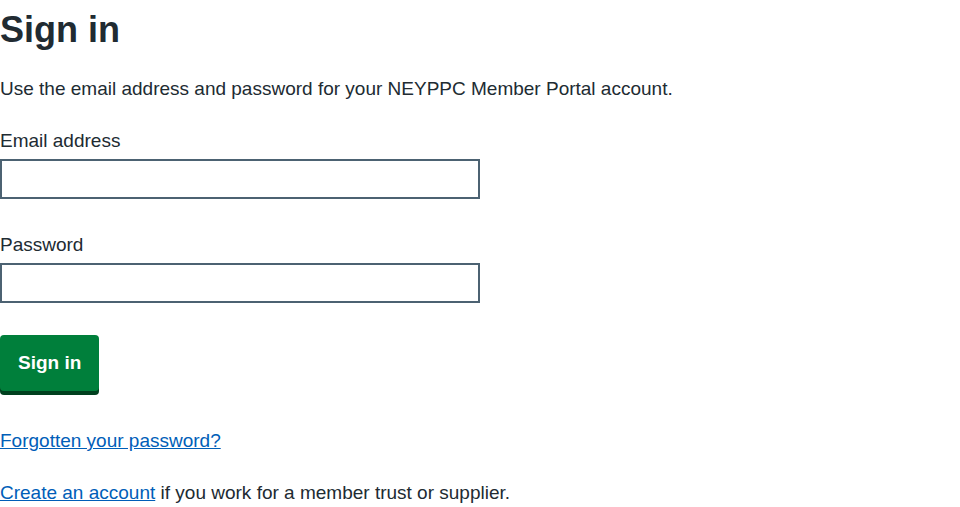
- Select Sign in at the top right of any page.
- Enter your Email address.
- Enter your Password.
- Select Sign in.
You arrive at the home page. Your name and a Sign out button appear at the top right.
If you try to open a page that needs you to sign in, you see "Sign in to see this page" with a Sign in link. After signing in you always land on the home page, so open the page you wanted again.
Enter a two-factor code
Two-factor sign-in adds a second step: a 6-digit code from an authenticator app. It protects the consortium's commercial data if someone learns your password.
If two-factor sign-in is switched on for your account, the page changes after you select Sign in and shows Enter your authentication code.
- Open your authenticator app and find the entry for the NEYPPC Portal.
- Enter the current code in 6-digit code. Spaces are ignored.
- Select Sign in.
Codes change regularly, so enter the one showing now.
If you cannot use your authenticator app, select Use a backup code instead, enter one of the backup codes you saved when you turned two-factor sign-in on (see below) in Backup code, and select Sign in. Each backup code works once. Select Use a code from your authenticator app to go back. If you have no backup codes left either, use Contact us in the page footer (see the guide "Contact the consortium").
Turn on two-factor sign-in
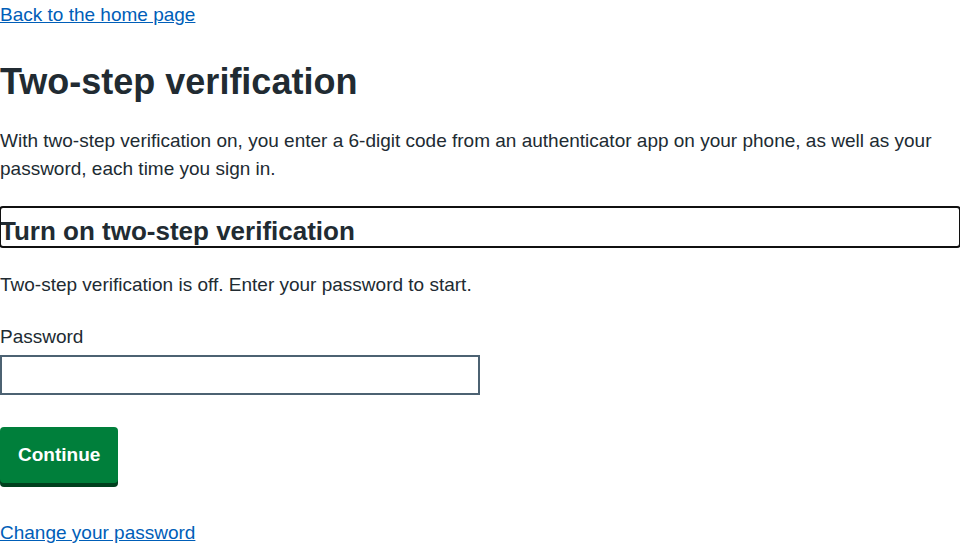
You do this yourself, signed in, on the Two-step verification page. It also works while your account is waiting for approval.
- Have an authenticator app on your phone, such as Microsoft Authenticator or Google Authenticator.
- On the home page, select Set up two-step verification. You can also reach it from Change your password.
- Enter your Password and select Continue.
- The page shows Set up your authenticator app, with a QR code and a key for manual entry. In your app, scan the QR code. If you cannot scan it, choose to enter a key by hand and type the key shown on the page, which is grouped in fours. Spaces do not matter.
- Enter the 6-digit code the app now shows in 6-digit code, and select Turn on two-step verification.
- The page says "Two-step verification is on" and shows Save your backup codes. Copy them somewhere safe, such as a password manager. The portal shows them only once. Each works once if you cannot use your app. Select I have saved my backup codes when you have done so.
From now on, Sign in is followed by Enter your authentication code.
If you leave the page before step 5, two-step verification stays off. Start again from step 2.
Turn off two-factor sign-in
- Go to Set up two-step verification from the home page. The page says "Two-step verification is on."
- Select Turn off two-step verification.
- Enter your Password and select Turn off two-step verification.
The page says "Two-step verification is off. You now sign in with your password alone." You can turn it on again at any time. A new set of backup codes is made each time.
Stay signed in, and sign out
- You are signed out after 30 minutes without using the portal. Every page you open counts as use, so you stay signed in while you work. This protects the data if you leave a screen unattended. If it happens, sign in again.
- To sign out yourself, select Sign out at the top right. You go to the sign-in page.
When your password expires
The consortium can set a period after which everyone must change their password.
- If that is switched on, the portal emails you 14 days, 7 days and 1 day before your password expires.
- Once it has expired you cannot sign in. The page says "Your password has expired. Reset it to sign in." Follow the guide "Reset or change your password".
When an account is not used for a long time
The consortium can also set a period of inactivity, after which accounts are made anonymous overnight. When this happens your name, email address, job title and trust are removed and you can no longer sign in. You then register again. If you are away for a long period, ask the consortium how long accounts are kept.
If something goes wrong
| Message on screen | What it means and what to do |
|---|---|
| Enter your email address | The Email address box is empty. |
| Enter your password | The Password box is empty. |
| The email address or password is not correct. Check them and try again, or reset your password. | The details do not match an account. Check for typing mistakes and that Caps Lock is off. If you cannot remember the password, use Forgotten your password?. The same message appears for an account that was made anonymous. |
| Your password has expired. Reset it to sign in. | Your password is older than the consortium allows. Use Forgotten your password? on the sign-in page. |
| Your account is not available. Ask your organisation’s administrator for help. | The account has been suspended or can no longer be used. Contact your organisation's administrator or the consortium. |
| Enter the 6-digit code from your authenticator app | The 6-digit code box is empty. |
| Enter one of your backup codes | The Backup code box is empty. |
| The backup code is not correct or has already been used. Check it and try again. | Each code works once. Try another one. |
| The password is not correct. Enter the password you use to sign in. | On the Two-step verification page, the password you entered is wrong. Try again. |
| The code must be 6 digits. Check your authenticator app and try again. | You entered letters or the wrong number of digits. |
| The code is not correct or has expired. Enter the current code from your authenticator app. | Wait for a new code in the app and enter it. Check that your phone's clock is set automatically. |
| Too many attempts. Wait a few minutes, then try again. | You or someone on your network tried too often. Wait, then try again. |
| Something went wrong on our side. Try again in a few minutes. | A temporary fault. Wait and try again. |
| Sign in to see this page | You are not signed in, or 30 minutes passed without use. Select Sign in. |