
Reset or change your password
Get a new password by email when you have forgotten it or it has expired, or change it yourself while signed in.
Member guide.
Who can do this: anyone with a portal account, signed in or not.
Before you start
- You need access to the email inbox for the address on your account. The reset link goes there.
- Your new password must be at least 12 characters and no more than 128.
Reset a forgotten or expired password
You use the same steps if you forgot your password or if sign-in said "Your password has expired. Reset it to sign in."
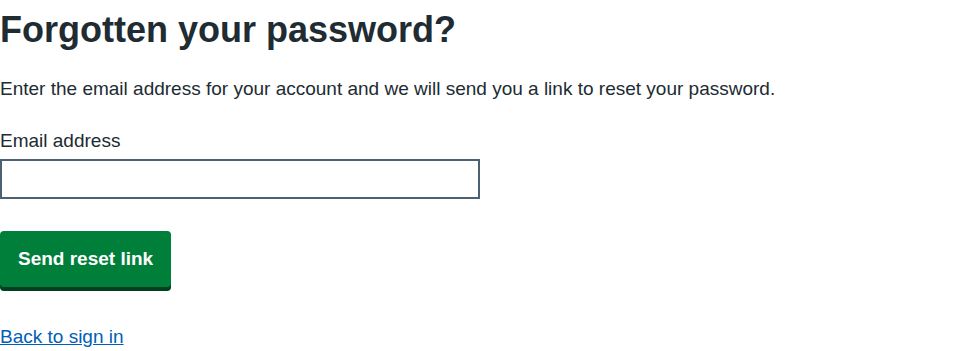
- On the Sign in page, select Forgotten your password?. The same link is in the page footer when you are signed out.
- Enter your Email address.
- Select Send reset link.
The page now says Check your email: "If there is an account for that email address, we have sent a link to reset your password. The link works for a limited time." It gives the same answer whether or not the address has an account, so nobody can use it to find out who is registered.
- Open the email with the subject "Reset your NEYPPC portal password". Check your junk folder if it does not arrive in a few minutes.
- Select the link in the email. It works for 60 minutes and can be used once.
- Enter your New password, then enter it again in Confirm new password.
- Select Reset password.
You go to the Sign in page, which shows "Your password has been reset. Sign in with your new password." Resetting also signs you out of the portal everywhere else, which protects you if someone else had your old password. If your consortium sets a password reset period, the new password starts a fresh period.
Change your password while signed in
You can change your password yourself when you know the current one. This also works while your account is waiting for approval.
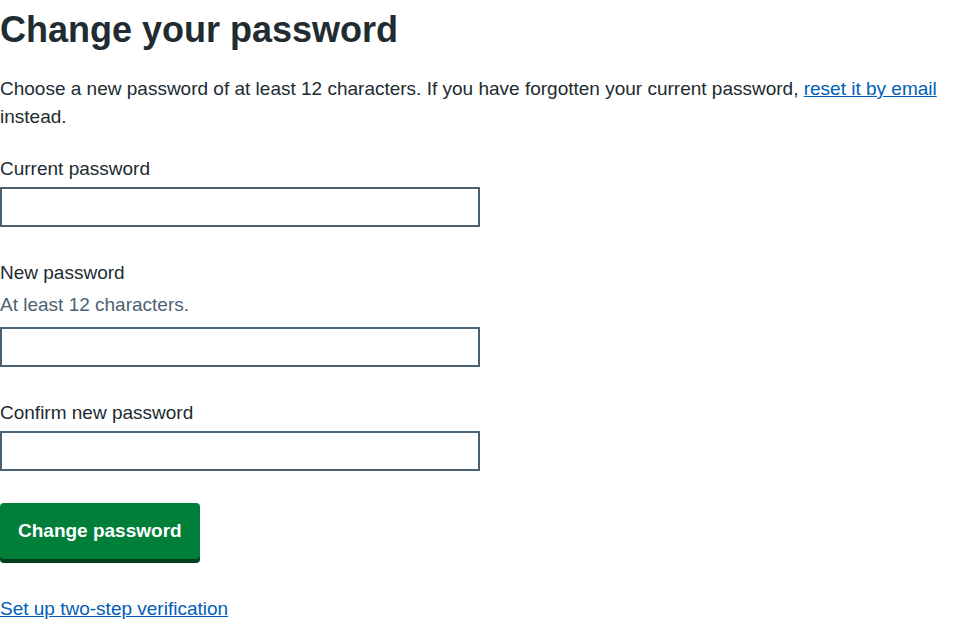
- On the home page, select Change your password. The reminder emails about an expiring password link straight to this page. If you are not signed in, the page asks you to Sign in first.
- Enter your Current password.
- Enter your New password. The page says it must be at least 12 characters.
- Enter it again in Confirm new password.
- Select Change password.
The page then says "Your password has been changed" and "Use your new password the next time you sign in. We have signed you out on any other devices." You stay signed in on this device. If your consortium sets a password reset period, the new password starts a fresh period.
If you have forgotten your current password, select reset it by email on the same page, or use the reset steps above.
If something goes wrong
| Message on screen | What it means and what to do |
|---|---|
| Enter your email address | The Email address box is empty. |
| Enter an email address in the correct format, like name@nhs.net | The address is missing the @ or the domain. |
| This reset link cannot be used | The link has expired (after 60 minutes), has already been used, or was copied incompletely. The page says "The link has expired, has already been used or is incomplete." Select Request a new reset link. |
| Enter a new password | The New password box is empty. |
| Password must be at least 12 characters | Choose a longer password. |
| Password must be 128 characters or fewer | Choose a shorter password. |
| Enter your new password again | The Confirm new password box is empty. |
| The passwords do not match. Enter the same password in both boxes. | The two boxes differ. Retype both. |
| Choose a different password and try again. | The portal did not accept the new password and may give its own reason instead. Choose another password. |
| Too many attempts. Wait a few minutes, then try again. | Too many requests from you or your network. Wait, then try again. |
| Something went wrong on our side. Try again in a few minutes. | A temporary fault. Wait and try again. |
| Enter your current password | The Current password box is empty. |
| The current password is not correct. Enter the password you use to sign in. | The password in Current password does not match your account. If you cannot remember it, reset it by email. |
| Choose a password you have not used for this account | The new password is the same as the current one. Choose a different one. |
| Sign in to change your password | You opened Change your password without being signed in. Select Sign in, or use the reset steps above. |