Find your way round the portal
Use the home page, main navigation, news, events, team and information pages.
Member guide.
Who can do this: anyone. Some items are shown only to signed-in members.
The home page and main navigation
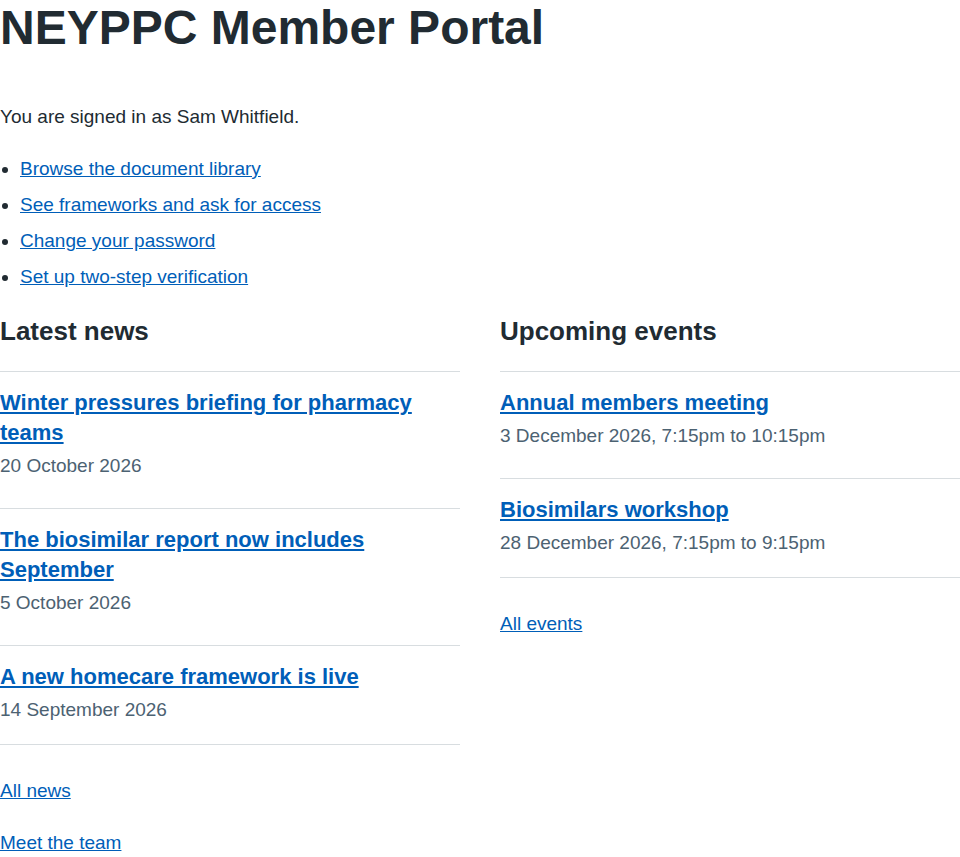
The home page is the first page after you sign in.
Below the page header, the main navigation has links to:
- Home, News, Events and Library, which anyone can open.
- Frameworks, Reports, Dashboards and Notifications, which appear only when you are signed in. When you have unread notifications the count is shown, for example Notifications (2).
At the top right you see Sign in, or, once signed in, your name and Sign out. If you are an administrator, Administration appears too.
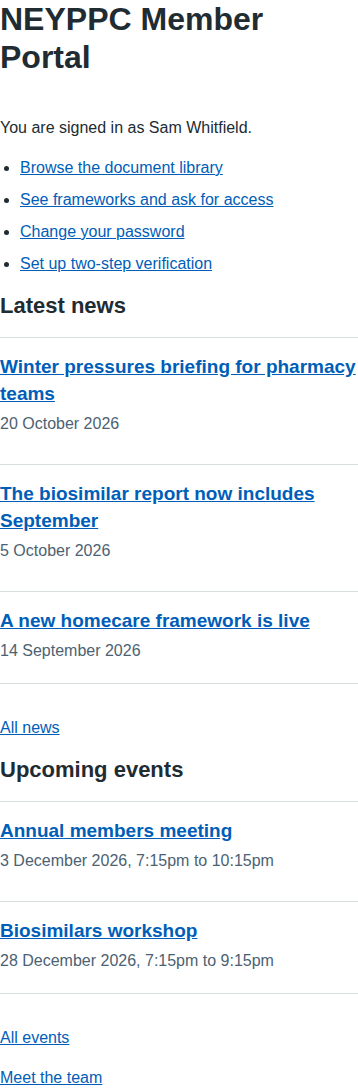
When you are signed in, the home page greets you with "You are signed in as" and your name, then links to Browse the document library, See frameworks and ask for access, Change your password and Set up two-step verification. Below those are Latest news and Upcoming events, each with the latest three items and the links All news and All events, and a Meet the team link.
When you are signed out, the page invites you to Sign in or create an account.
The footer has an Information list with Meet the team and the consortium's published information pages (see "Information pages"), then Contact us. When you are signed out it also has Create an account and Forgotten your password?. Press Tab at the very start of any page to reach the Skip to main content link.
Read the news
- Select News in the main navigation, or All news on the home page.
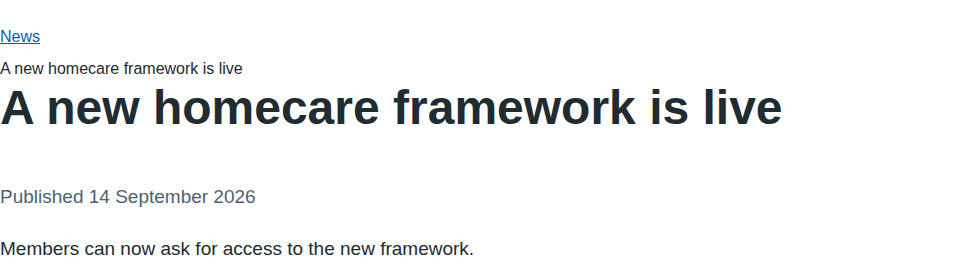
- Select a title to read the item. The date it was published is shown under the title.
- Use the News link in the breadcrumbs above the title to go back to the list.
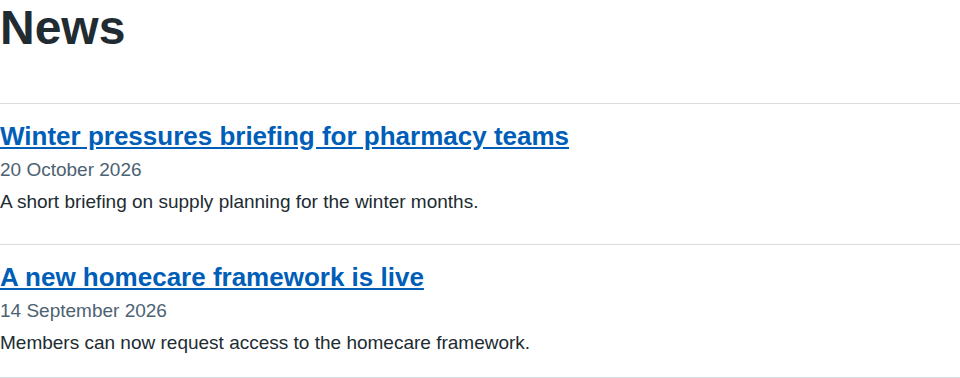
The list shows ten items per page. Use Older news and Newer news at the foot of the list to move between pages. If there are none, the page says "There is no news to show."
Find events
- Select Events in the main navigation.
- Read the date, time and place under each title. Only events that have not finished yet are listed. If there are none, the page says "There are no upcoming events."
- Select a title for the full details. The event page shows When, in UK time, and Where, when a place has been given, then the description.
Meet the team
Select Meet the team on the home page. The page lists each team member's photo (when they have one), name, role and a short biography. If nothing has been published yet it says "There is nobody to show yet."
Information pages
The consortium publishes other pages, such as guidance, at addresses that start with /pages/. They are listed under Information in the footer at the bottom of every page, by title, for example About the consortium. Select a title to open the page. You can also reach one from a link inside a news item, an event or another page. Each page shows its title and text. Pages meant only for signed-in members are listed once you sign in.
Why you might not see something
The consortium decides who can see each news item, event and page: everyone, any signed-in member, or only members with a particular tag. If you open a link to an item you are not allowed to see, you get Page not found. The page suggests you may need to sign in. Sign in and try again. If it still fails, the item may have been moved or removed, or it is not meant for your account.
If something goes wrong
| Message on screen | What it means and what to do |
|---|---|
| Page not found | The address is wrong, the item was removed, or it is not available to you. Check the address, sign in if you are not, or go to the home page. |
| There is no news to show. | No news has been published, or none is visible to you. |
| There are no upcoming events. | No future events are published. |
| There is nobody to show yet. | No team members are published yet. |
| Sorry, there is a problem with the service | A fault on our side. Select Try again. If it continues, use Contact us in the footer. |