Create an account and wait for approval
Register for the NEYPPC Member Portal and understand what you can and cannot see until an administrator approves your account.
Member guide.
Anyone who works for a member trust can ask for an account. You create it yourself, then an administrator at the consortium approves it.
Who can do this: anyone, without signing in first.
Before you start
- Have your work email address to hand, for example one ending in
nhs.net. - Choose a password of at least 12 characters. There is no other rule about letters, numbers or symbols, so a long phrase works well.
- Know which trust you work for. You can leave it blank, but an administrator then has to find out which trust you belong to before you see any of its data.
Your account waits for approval so that only NHS staff from member trusts see consortium data.
Create your account
- Go to the portal and select Create an account in the footer, or on the Sign in page.
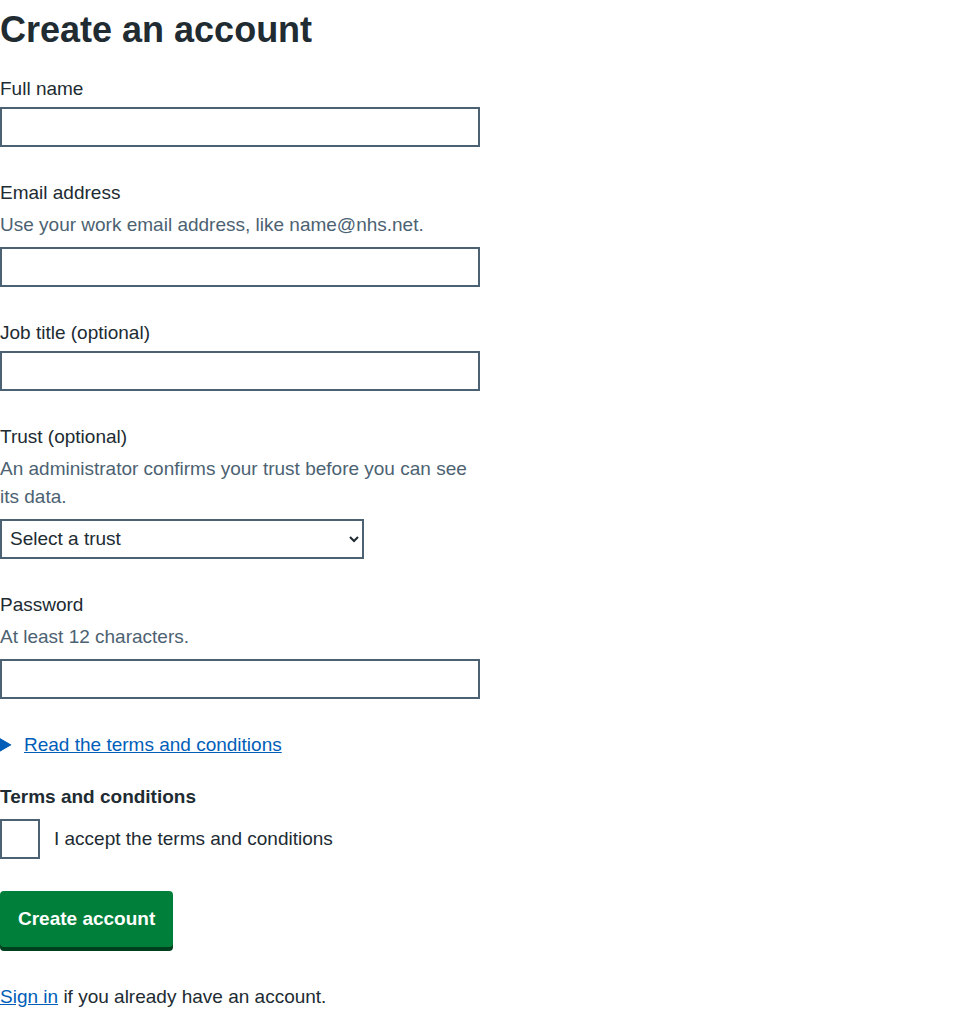
- Enter your Full name.
- Enter your Email address. Use your work address.
- If you like, enter your Job title (optional).
- If you know it, choose your trust from Trust (optional). An administrator confirms your trust before you can see its data, so choosing the wrong one does not give you access to it.
- Enter a Password. It must be at least 12 characters.
- Select Read the terms and conditions to open and read them.
- Tick I accept the terms and conditions.
- Select Create account.
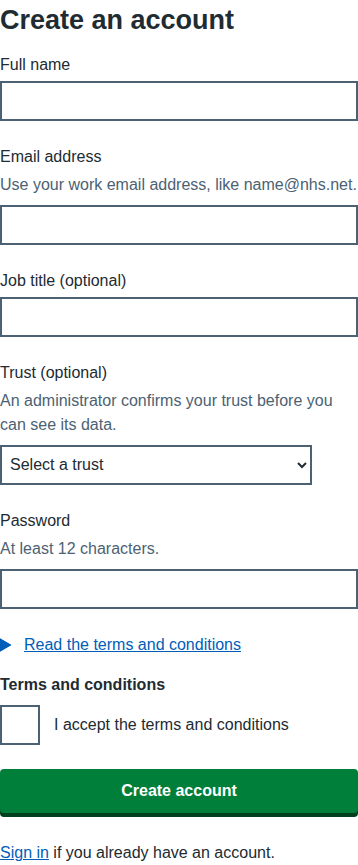
On a phone the form is a single column and works the same way.
If something is missing or wrong, a red summary appears at the top of the page. Each message in it is a link that takes you to the field to fix.
What happens next
You arrive at the Account created page.
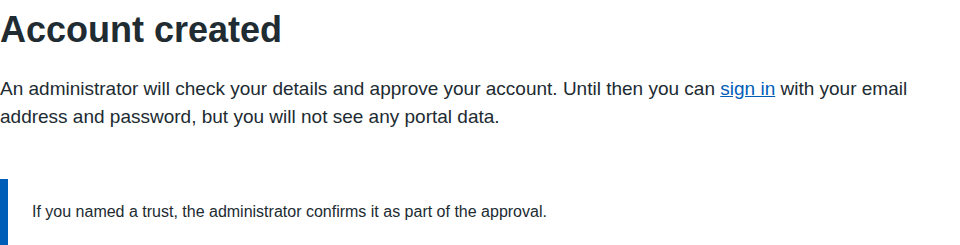
- An administrator checks your details and approves your account. When they do, the portal emails you at the address you registered with. The email is called "Your NEYPPC portal account is ready" and has a link to the Sign in page. Check your junk folder if it does not arrive in a few minutes.
- Until then you can sign in with your email address and password, but you will not see any portal data. A notice at the top of every page reads "Your account is waiting for an administrator to approve it. You can use the portal once they have approved your trust."
- While you wait, the reports, dashboards and frameworks do not open for you. Each of those pages says "Your account is waiting for approval" and repeats that the portal will email you when your account is ready. Public pages such as the news and events pages work as they do for any visitor.
- If you named a trust, the administrator confirms it as part of the approval.
- Once you are approved, the notice disappears (sign in again if you are already signed in, or select the link in the email) and the full navigation works. See the guide "Sign in, use two-factor and stay signed in".
If the email address already has an account, you still reach Account created. This is deliberate, so nobody can use the form to find out who has an account. Nothing changes on the existing account. If you cannot remember its password, see the guide "Reset or change your password".
If something goes wrong
| Message on screen | What it means and what to do |
|---|---|
| Enter your full name | The Full name box is empty. Enter your name. |
| Name must be 200 characters or fewer | Shorten the name. |
| Enter your email address | The Email address box is empty. |
| Enter an email address in the correct format, like name@nhs.net | The address is missing the @ or the domain. Check for typos. |
| Job title must be 200 characters or fewer | Shorten the job title. |
| Select your trust from the list | The trust was not one of the listed trusts. Choose one from the list, or leave it blank. |
| Enter a password | The Password box is empty. |
| Password must be at least 12 characters | Choose a longer password. |
| Password must be 128 characters or fewer | Choose a shorter password. |
| Confirm you accept the terms and conditions | Tick I accept the terms and conditions. You cannot create an account without accepting them. |
| The terms and conditions have changed. Read them again and accept them. | The consortium published new terms while you were filling in the form. The page reloads with the new terms. Read them, tick the box and select Create account again. |
| Registration is not available at the moment. Try again later. | The registration page shows this instead of the form when registration is closed. Try again later or use Contact us. |
| Registration is not open yet. Try again later. | The same problem, reported when you submit the form. |
| Something went wrong on our side. Try again in a few minutes. | A temporary fault. Wait and try again. If it continues, use Contact us in the page footer. |